
When you select an image to upload as a document attached to a credential from the mobile app, a cropping interface appears. This interface lets you adjust the selected image to your preferred size before confirming the upload.
You now see an 'X' clear icon-button appear in search inputs after entering text. Selecting this button removes all text from the input, focuses the cursor back to the field, and causes the clear icon to disappear. The clear icon-button also displays when an organisation is selected in organisation-select inputs, and behaves consistently with mouse and keyboard interaction. On the enterprise Profile Edit page, the organisation select dropdown continues to align correctly if displayed upwards, addressing previous layout issues.
You can now upload and issue your pay stub as a credential. When self-issuing a credential, you will see the option to select "Pay Stub" as the credential type. The straight time, time and a half, double time, and premium time fields on the pay stub accept only number or decimal entries and do not accept text values. All uploaded pay stubs use the Evidence document type, and there is no strict validation of the document format. Sharing your issued pay stub credential follows the standard sharing process.
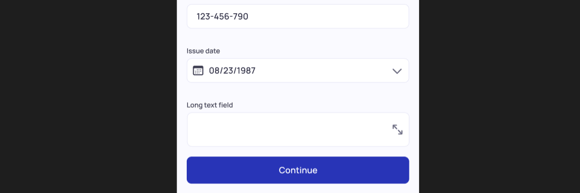
You can now enter and validate long text comments when issuing credentials that include a long text field in the template using the mobile app. The long text input accepts extended entries and presents user-friendly error messages if input doesn’t meet validation requirements. When viewing a credential with a long text field, the content displays clearly and allows you to tap and expand any truncated text for full visibility.
